









Remote Control for TV supports Siri Shortcuts and App Intents so common TV remote actions can run from Siri, widgets, Shortcuts, and other supported system surfaces.
Quick Answer
Siri can control saved TVs through Remote Control for TV using actions such as Send Key, Turn On, Launch App, and Switch Input on supported devices. Pair the TV in the app first, then create shortcuts for the actions you use most.
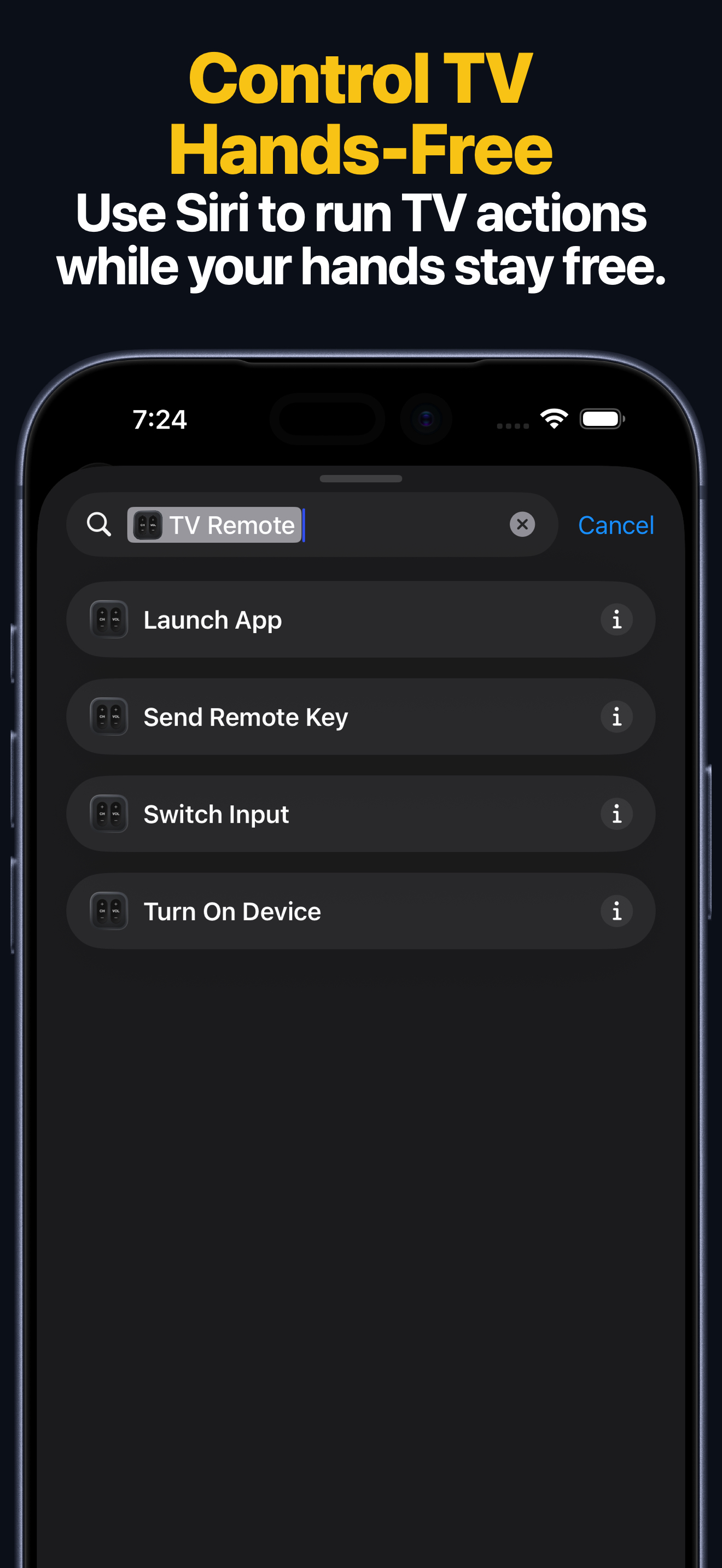
Siri and App Intent Actions
- Send a remote key to a saved TV.
- Turn on supported TVs and streaming devices.
- Launch a supported TV app.
- Switch TV input or source when supported by the device layout.
- Combine TV remote actions with other Shortcuts automations.
How to Create a TV Remote Shortcut
- Pair and save your TV in Remote Control for TV.
- Open the Shortcuts app.
- Search for Remote Control for TV actions.
- Pick an action such as Send Key, Turn On, Launch App, or Switch Input.
- Choose the saved TV and action details.
- Name the shortcut so you can run it with Siri.
Useful Shortcut Ideas
- “Pause the TV” to send the play/pause key.
- “Open YouTube on TV” to launch a supported TV app.
- “Switch to HDMI 1” on supported TVs with source controls.
- “Turn on living room TV” on compatible saved devices.
Related Guides
- Apple Watch TV remote app
- Samsung TV remote app for iPhone
- Android TV and Google TV remote app for iPhone
- Remote Control for TV setup guides
Siri TV Remote FAQ
Why is a shortcut action missing?
Actions depend on the saved TV platform, device model, and supported remote layout. If a device does not support an action, it may not appear for that TV.
Can I run TV shortcuts from widgets?
Yes. Shortcuts and app actions can be used with supported widget and system surfaces when available on your iOS or iPadOS version.
Can Siri launch custom TV apps?
Launch support depends on the saved TV platform and app entry. Samsung TV and Android TV users can add custom app launchers first, then use supported launch actions where available.