


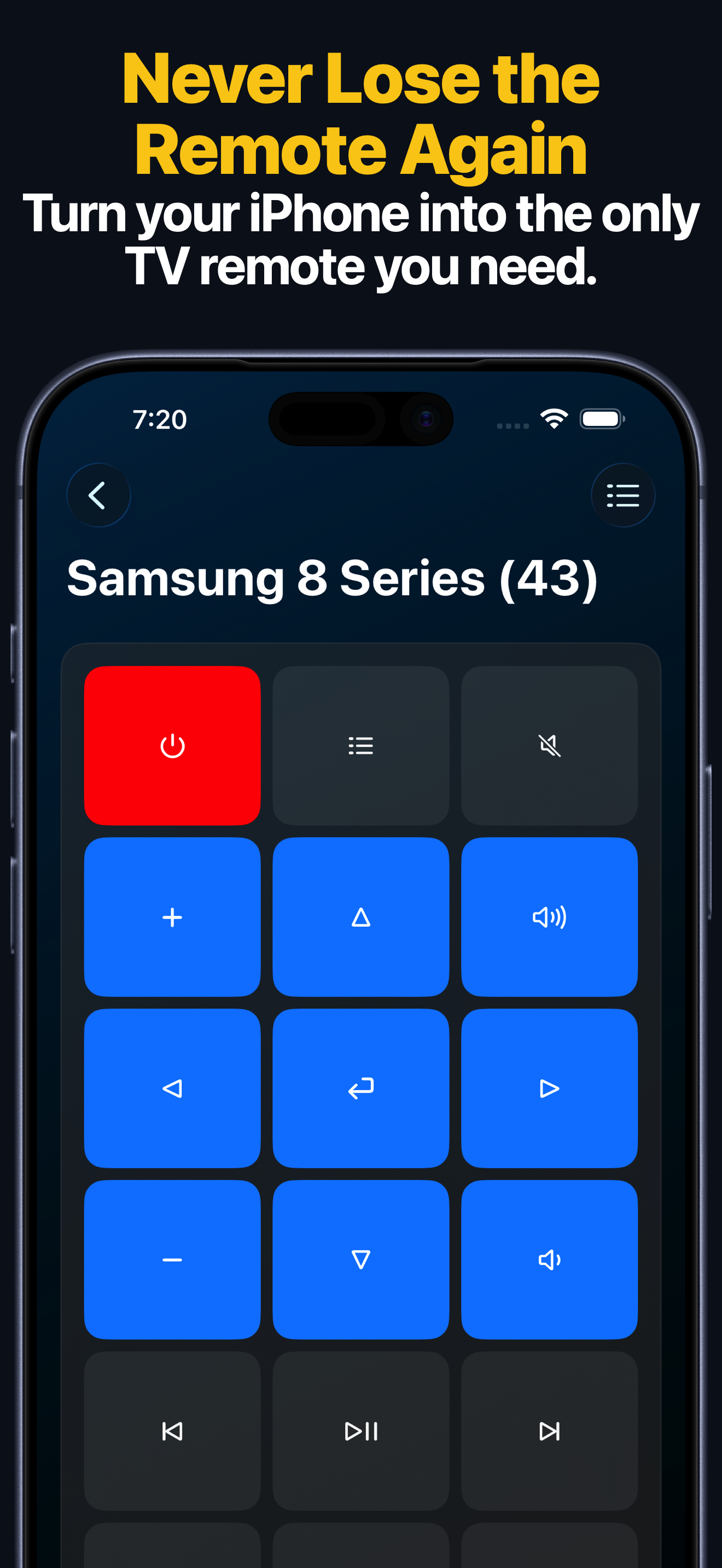
Use this hub to connect a supported TV or streaming device to Remote Control for TV, the iPhone and iPad TV remote app. The app connects over Wi-Fi, so your iPhone or iPad and TV need to be on the same local network before pairing starts. Once the device is saved, you can also keep using it from Apple Watch, Mac, widgets, and Siri on supported setups.
Device Setup Guides
- Apple TV setup for Apple TV HD and Apple TV 4K.
- Samsung TV setup for Samsung Smart TV pairing and access settings.
- LG TV setup for LG webOS approval and PIN pairing.
- Roku setup for Roku mobile app control settings.
- Fire TV setup for Fire TV PIN pairing.
- Android TV and Google TV setup for Android TV brands, Google TV, and Chromecast-branded devices.
- Hisense TV setup for VIDAA remote control service and pairing.
- Vizio TV setup for Vizio PIN-based pairing.
Before You Start
- Make sure your iPhone or iPad and the TV are connected to the same network.
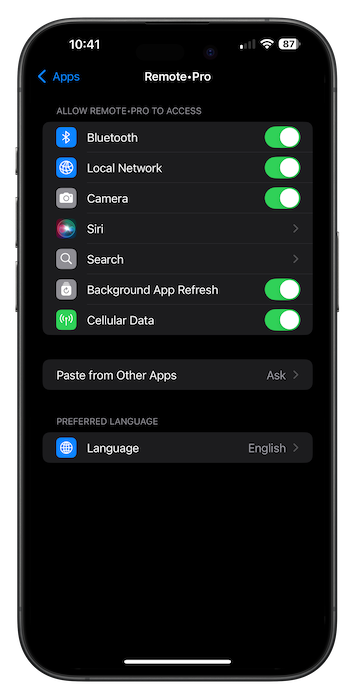
- Turn on Local Network access for the app in iPhone or iPad Settings.
- Keep the TV awake while pairing. Some TVs will not show a PIN or approval prompt while sleeping.
- Expect a platform-specific pairing step. Some TVs ask you to approve the request, while others show a PIN you enter in the app.
More Ways to Control Your TV After Pairing
- The Apple Watch app syncs saved devices from your iPhone and gives quick keypad control for every supported device family.
- On Apple Watch, app launching is available for Apple TV, Samsung, LG, Android TV, Fire TV, Roku, and Hisense. LG and Hisense also support source switching on watch.
- The macOS app can use the same saved devices from your Mac for remote keys, text input, app launching, and source switching where the device supports those features.
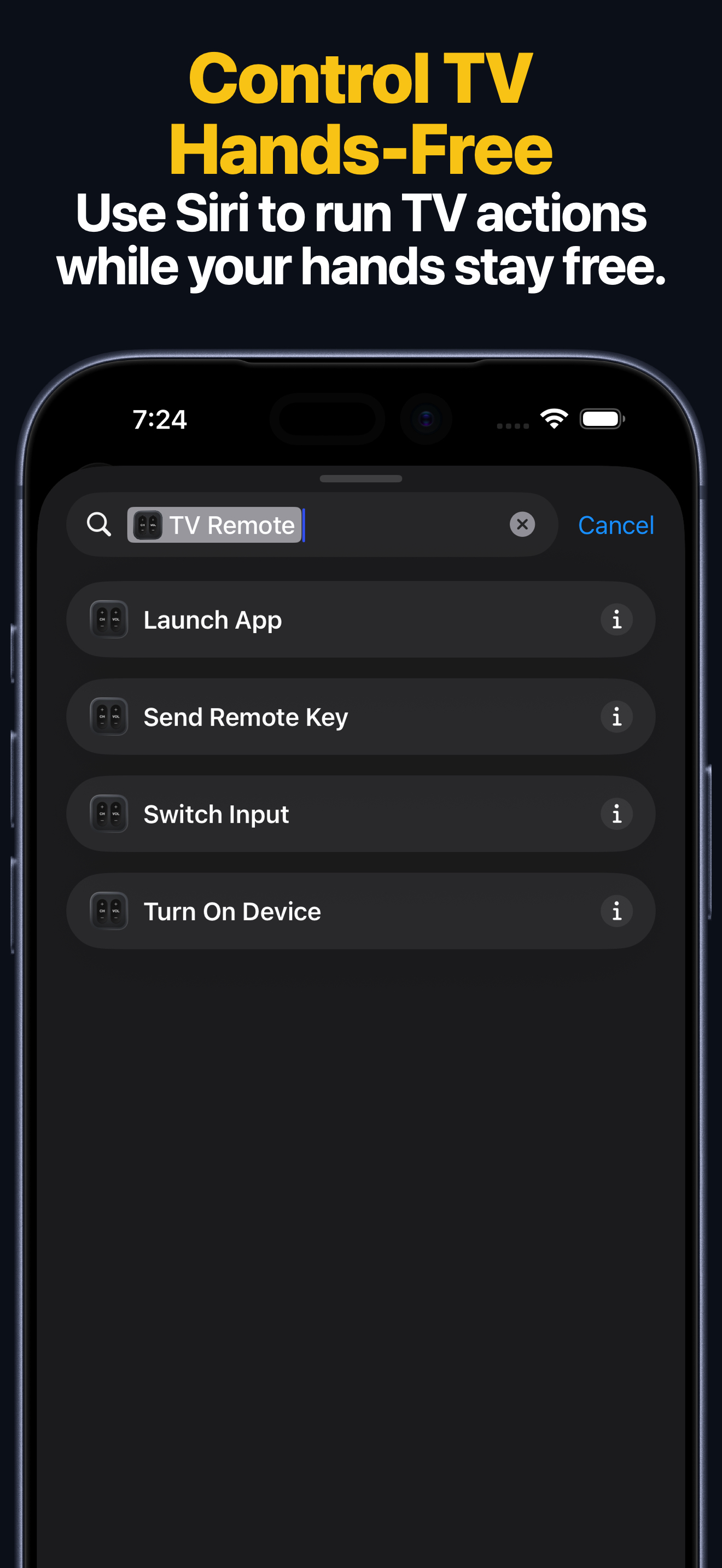
- Siri Shortcuts and App Intents expose four main actions: Send Key, Turn On, Launch App, and Switch Input on supported saved devices.
Problems with Connecting
If the app on your iPhone or iPad cannot find your TV, start with these checks:
- Please check that the app has permission to use Local Network by opening iOS Settings -> select the app from the list of apps -> and turn on the Local Network switch.
- If possible, connect your smart TV using an Ethernet cable; if not, check the Wi-Fi settings on your TV and ensure it’s connected to your network.
Fixing Network Issues
-
Restart your router (disconnect the power plug, wait for a couple of seconds, and plug it in again).
-
Check your firewall settings (on your router).
-
Public networks (in hotels, schools, libraries, etc.) block connections between devices.
Frequently Asked Questions
Can I use this guide for Samsung TV, LG TV, Roku, Fire TV, Android TV, Apple TV, Hisense, and Vizio?
Yes. This page links to the setup instructions for each supported platform.
Why does one TV need a PIN while another just asks for approval?
The pairing flow depends on the TV platform. Apple TV, Samsung, Fire TV, Android TV, Hisense, and Vizio can show a PIN, while LG may ask for approval or a PIN depending on the model.
Does the app work over Bluetooth or infrared?
No. The app uses your local network, so same-network access is the key requirement.
Can I keep controlling the paired TV from Apple Watch, Mac, or Siri?
Yes. Pair the device once on iPhone or iPad, then use the saved device from the Apple Watch app, the macOS app, widgets, and Siri Shortcuts or App Intents where those actions are supported for that brand.