




Use this guide to connect Fire TV to Remote Control for TV, the iPhone and iPad TV remote app.
This guide works for Fire TV Stick, Fire TV Cube, and TVs running Fire TV.
How to Connect Fire TV
- Make sure your iPhone or iPad and Fire TV are connected to the same network.
- Open the app and choose your Fire TV.
- Enter the PIN shown on Fire TV to finish pairing.
- Keep Fire TV awake on the Home screen during the first connection.
What the app supports after pairing
- Full remote controls for navigation and playback.
- Launching apps directly from the app.
- Typing searches and passwords from your iPhone or iPad.
- Apple Watch access for quick keypad control and app launching.
- macOS control for the same saved Fire TV from your Mac.
- Home Screen widgets for quick access.
- Siri Shortcuts and App Intents for playback, volume, and other supported remote actions.
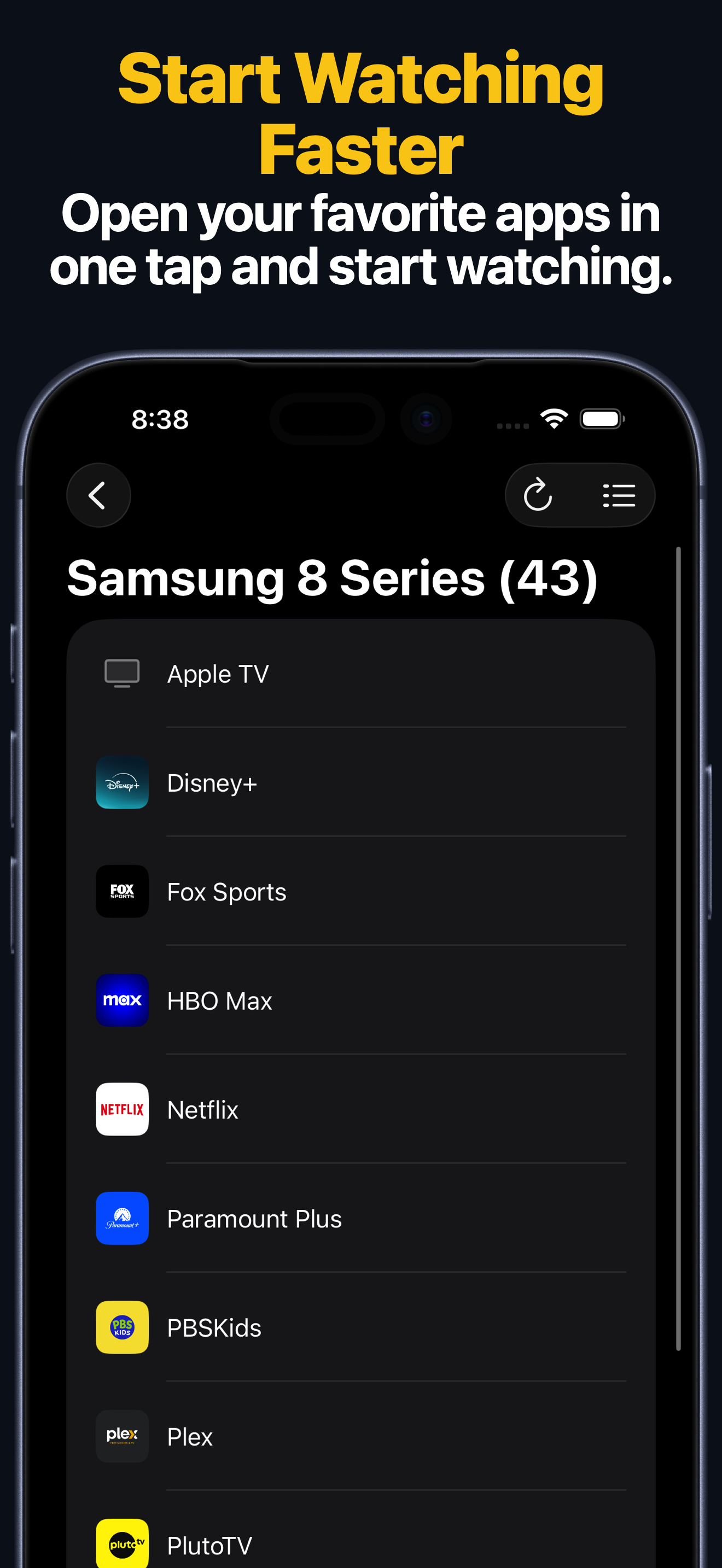
Apple Watch, Mac, and Siri
- The Apple Watch app supports keypad control and app launching on supported Fire TV devices.
- The macOS app can control the same saved Fire TV from your Mac, including keys, text entry, and app launching.
- Siri Shortcuts and App Intents can send remote keys, turn on compatible devices, and launch apps on supported Fire TV setups.
Common Fire TV Connection Problems
If you cannot connect to your TV
- Exit the screen saver or wake Fire TV before searching again.
- Check that both devices are on the same Wi-Fi network and not on a guest or isolated network.
- Restart Fire TV and try pairing again if the PIN does not appear.
Fire TV FAQ
Does this guide work for Fire TV Stick and Fire TV Cube?
Yes. It works for Fire TV Stick, Fire TV Cube, and TVs running Fire TV.
Can I launch apps from the Fire TV remote app?
Yes. On supported Fire TV devices, the app can launch apps directly after pairing.
Can I control Fire TV from Apple Watch, Mac, or Siri?
Yes. After pairing on iPhone or iPad, supported Fire TV devices can also be controlled from Apple Watch, the macOS app, widgets, and Siri Shortcuts or App Intents.