



Use Remote Control for TV as a Fire TV remote app for iPhone, iPad, Apple Watch, and Mac. It works with supported Fire TV Stick, Fire TV Cube, and televisions running Fire TV on the same local network.
Quick Answer
Remote Control for TV lets iPhone and iPad control supported Fire TV devices over Wi-Fi. Choose Fire TV in the app, enter the PIN shown on the TV, then use remote keys, playback controls, app launching, text input, Apple Watch controls, widgets, and Siri Shortcuts where supported.
Fire TV Remote Features
- Remote keypad for navigation, playback, volume, and common Fire TV controls.
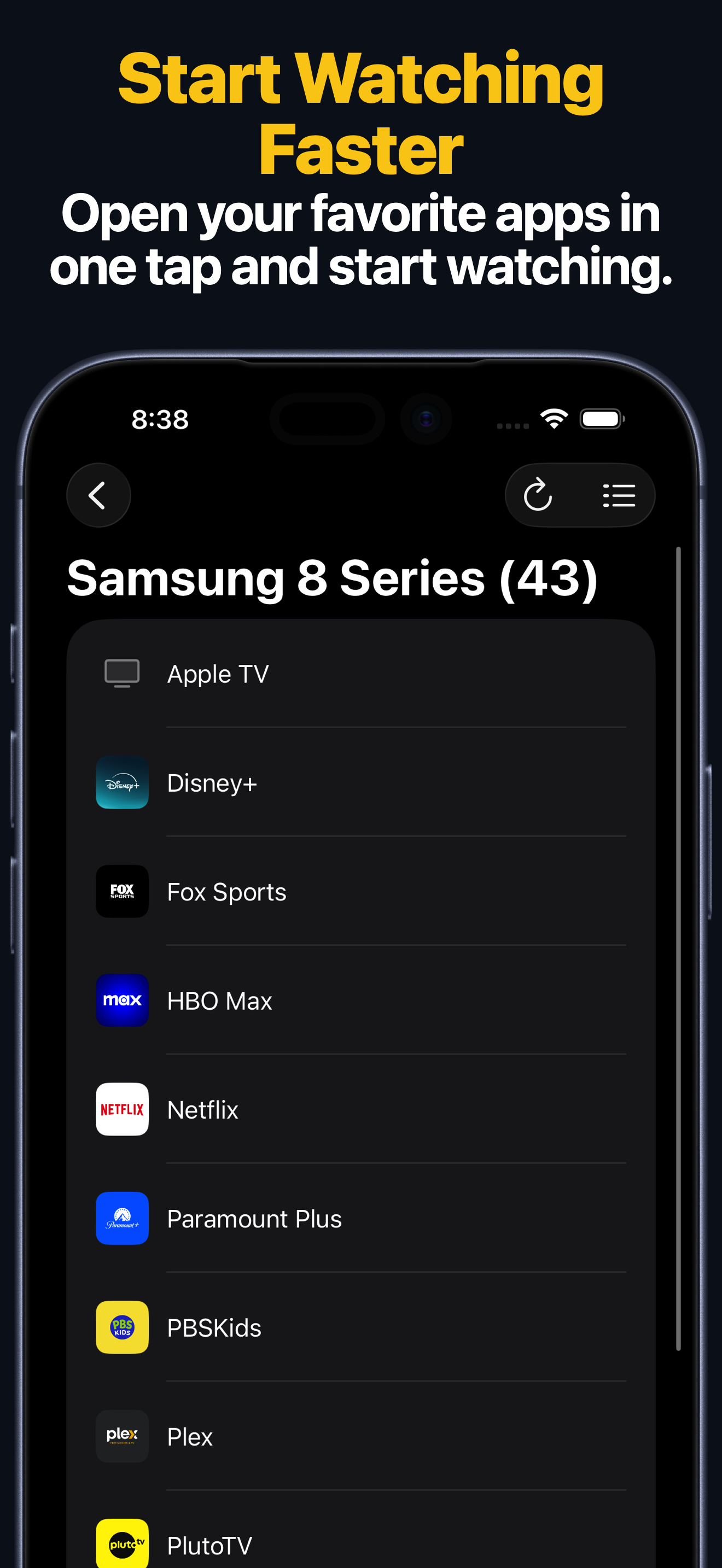
- App launching on supported Fire TV devices.
- Text input from iPhone or iPad for search and sign-in fields.
- Apple Watch keypad and app launching after the Fire TV is saved.
- macOS control, widgets, and Siri Shortcuts for supported actions.
How to Set It Up
- Install Remote Control for TV on your iPhone or iPad.
- Connect the iPhone or iPad and Fire TV to the same local network.
- Open the app and choose your Fire TV.
- Enter the PIN shown on Fire TV.
- Keep Fire TV awake on the Home screen during the first connection.
For troubleshooting, open the Fire TV setup guide.
Fire TV FAQ
Why cannot the app find my Fire TV?
Wake Fire TV, exit the screen saver, and check that both devices are on the same Wi-Fi network. Guest or isolated networks can block discovery.
Does this work with Fire TV Stick and Fire TV Cube?
Yes. The page applies to supported Fire TV Stick, Fire TV Cube, and televisions running Fire TV.
Can I launch Fire TV apps from iPhone?
Yes. App launching is supported on compatible Fire TV devices after pairing.