






Use Remote Control for TV as an LG TV remote app for iPhone, iPad, Apple Watch, and Mac. It connects to supported LG Smart TVs and LG webOS TVs over the same local Wi-Fi network.
Quick Answer
Remote Control for TV lets iPhone and iPad control supported LG TVs over Wi-Fi. After pairing, you can use remote keys, app launching, text input, LG webOS touchpad navigation, HDMI input switching, Apple Watch controls, widgets, and Siri Shortcuts where the TV supports those actions.
LG TV Remote Features
- Full remote keypad for navigation, playback, volume, and common TV controls.
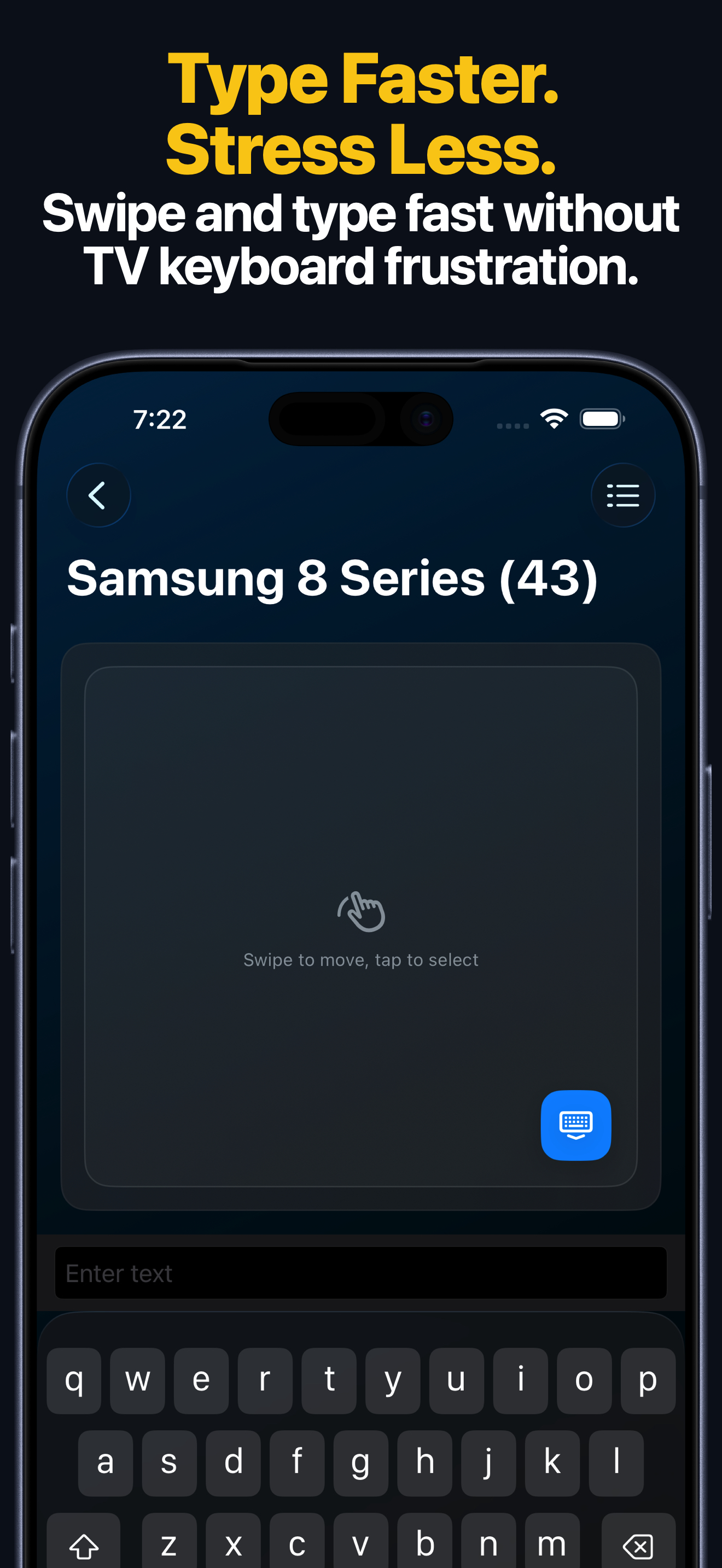
- Touchpad navigation for supported LG webOS TVs.
- App launching on supported LG TVs.
- Text input from iPhone or iPad instead of the TV keyboard.
- Source and HDMI input switching on supported LG TVs.
- Apple Watch keypad, app launching, and source switching after the TV is saved.
- macOS control, widgets, and Siri Shortcuts for supported actions.
How to Set It Up
- Install Remote Control for TV on your iPhone or iPad.
- Connect the iPhone or iPad and LG TV to the same local network.
- Open the app and choose your LG TV.
- Approve the connection on the TV or enter the PIN shown on the TV.
- Save the TV and use remote controls, app launching, touchpad navigation, inputs, Apple Watch, or Siri Shortcuts.
For screenshots and troubleshooting, open the LG TV setup guide.
LG TV FAQ
Why cannot the app find my LG TV?
Keep the TV awake, make sure both devices are on the same local network, and complete the approval or PIN step shown by the TV.
Does it work with every LG TV?
Feature support depends on LG TV model, webOS version, firmware, region, and local network settings.
Can I type on LG TV from iPhone?
Yes. Text input is supported on compatible LG TVs after pairing.