








Remote Mouse & Keyboard can work as an iPhone presentation remote for Mac. Use it to send keyboard shortcuts, move the cursor, control playback, launch apps, and build custom keypads for presentation workflows.
Quick Answer
To use iPhone as a presentation remote for Mac, install Remote Mouse & Keyboard on iPhone, install Remote Helper on the Mac, connect both devices to the same Wi-Fi network, then use keyboard shortcuts, trackpad controls, custom keypads, timers, or Siri Shortcuts to control your presentation app.
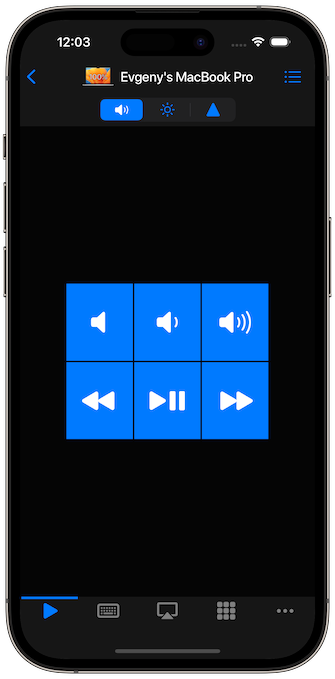
Presentation Remote Features
- Next and previous slide using keyboard shortcuts.
- Trackpad control for cursor and pointer workflows.
- Keyboard input for search, notes, and app controls.
- Custom keypads for presentation-specific shortcuts.
- App launching and app actions.
- Timers and Siri Shortcuts for supported actions.
How to Set It Up
- Install Remote Mouse & Keyboard on iPhone or iPad.
- Install Remote Helper on the Mac from rs.ltd/get.
- Connect both devices to the same Wi-Fi network or personal hotspot.
- Open the app and choose the Mac.
- Use the keyboard, trackpad, or a keypad for your presentation controls.
For custom controls, open the keypads guide and keypad creation guide.
Good Presentation Workflows
- Trigger next and previous slide shortcuts.
- Launch the presentation app from iPhone.
- Use a custom keypad for slide navigation, media playback, and screen controls.
- Control a Mac connected to a projector or TV.
- Use Siri Shortcuts for repeatable actions where supported.
Presentation Remote FAQ
Can I create my own presentation buttons?
Yes. Use custom keypads to create buttons for keyboard shortcuts, app actions, and scripts.
Is this only for Keynote?
No. It can control Mac apps that respond to keyboard shortcuts, mouse input, media controls, or custom scripts.
Can I use it without Wi-Fi internet?
Yes. A local Wi-Fi network or personal hotspot is enough for the remote connection.