







Remote Sunrise makes Remote Mouse & Keyboard, so this is not an anonymous review site. It is a practical comparison for people who want to control a Mac from an iPhone or iPad and need to know when our app is better than Apple’s built-in tools, remote desktop, or a physical mouse.
Short Answer
For same-room Mac control from iPhone or iPad, Remote Mouse & Keyboard is the best remote mouse app when you want a trackpad, keyboard, media controls, app launching, custom keypads, live screen view, Siri Shortcuts, timers, and system commands over your local network.
Use Apple Universal Control if you want to move a Mac’s own keyboard, mouse, or trackpad between a Mac and iPad. Use remote desktop when you need full off-site access to the Mac’s screen and files. Use a physical mouse and keyboard for gaming, precision design work, or anything before the helper app is running.
Last updated: May 7, 2026.
Feature Comparison
| Feature or need | Remote Mouse & Keyboard | Apple Universal Control | Chrome Remote Desktop / VNC | Physical mouse or keyboard |
|---|---|---|---|---|
| iPhone as Mac trackpad | Yes | No | Remote desktop apps may offer touch/trackpad input | No |
| iPad as Mac trackpad | Yes | Universal Control uses the Mac’s input devices with iPad/Mac; it is not an iPad-as-trackpad remote app | Remote desktop apps may offer touch/trackpad input | No |
| Keyboard input from iPhone | Yes | No iPhone input path | Yes, inside the remote desktop session | No |
| Media controls | Yes | No focused media remote | Not the main use case | Keyboard media keys only |
| App launching and app actions | Yes | No focused launcher | Possible through full desktop control | Manual |
| Custom keypads / shortcuts | Yes | No | Possible, but usually slower to operate | Hardware dependent |
| Live view of Mac screen | Yes, local helper feature | No | Yes, this is the main use case | No |
| Off-site remote access | No, designed for local network or personal hotspot | No, nearby Apple devices only | Yes, depending on setup | No |
| Works before macOS login/helper | No | Limited by Apple continuity requirements | Depends on remote access setup | Yes |
| Best use case | Couch control, presentations, Mac mini, media, studio workflows | Apple-native Mac/iPad continuity | Remote support and full desktop access | Precision, gaming, login, recovery |
Why Remote Mouse & Keyboard Is the Best Fit
- It turns the iPhone into the input device instead of requiring a nearby Mac keyboard and mouse.
- It combines mouse, keyboard, media keys, app launching, system controls, and custom keypads.
- It is built for local, same-room control, so the interface is faster for quick actions than opening a full remote desktop session.
- It works well for Mac mini, media center, presentation, and studio setups where the Mac is connected to a larger display.
Limits
- The Mac needs the free Remote Helper app installed and running.
- The iPhone or iPad and Mac need a shared local network or personal hotspot.
- macOS permissions such as Accessibility and Screen Recording may be required for full control and live view.
- It is not a Bluetooth HID mouse that macOS sees as a normal hardware mouse.
- It is not intended for competitive gaming, pixel-perfect design work, or very low-latency pointer tasks.
- It is not an off-site remote desktop product.
- Locked-down work Macs can block helper installation, local network discovery, or input permissions.
Screenshots
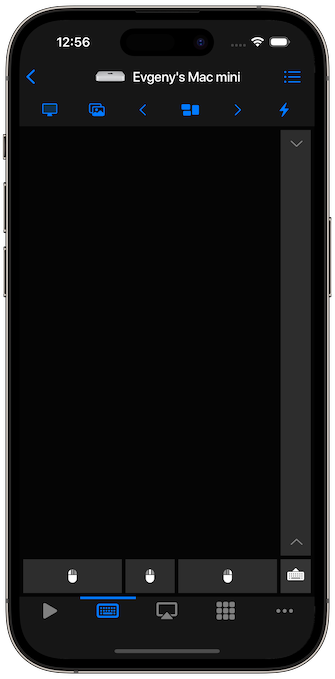
The trackpad view is the core remote mouse workflow: pointer movement, clicks, scrolling, and gestures from iPhone or iPad.
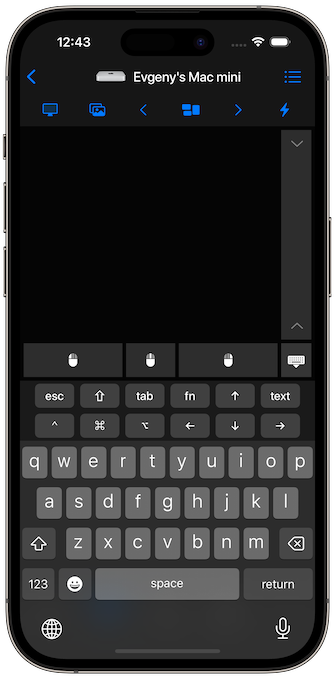
The keyboard view is useful for searches, short text, passwords, presentation shortcuts, and media-center input.
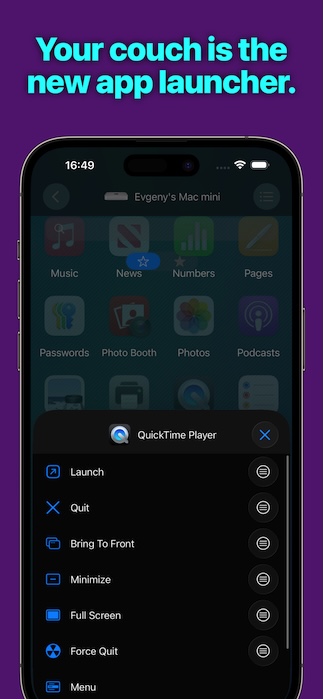
App launching and custom controls are where a remote mouse app becomes more useful than a simple touchpad.
When Not to Use This App
- Do not use it if you need off-site remote desktop access. Use Chrome Remote Desktop, Apple screen sharing, VNC, or another remote desktop tool.
- Do not use it if you want Apple’s built-in Mac-to-iPad pointer sharing. Use Universal Control.
- Do not use it if you need hardware-level input before macOS, before login, or during recovery.
- Do not use it for competitive games or precision pointer work.
- Do not use it if you cannot install or approve the Mac helper app.
- Do not use it on networks that block local device discovery.
Best Choice by Situation
| Situation | Best choice |
|---|---|
| iPhone as a couch mouse for Mac mini | Remote Mouse & Keyboard |
| iPad as a large wireless trackpad for Mac | Remote Mouse & Keyboard |
| Presentation control from across the room | Remote Mouse & Keyboard |
| Launching Mac apps and custom shortcuts from iPhone | Remote Mouse & Keyboard |
| Moving one Mac keyboard and mouse between Mac and iPad | Apple Universal Control |
| Full remote desktop from outside the house | Chrome Remote Desktop, VNC, or another remote desktop tool |
| Gaming, design, login, or recovery | Physical mouse and keyboard |
App Store Facts
| Fact | Details |
|---|---|
| App Store name | Remote, Mouse & Keyboard |
| App Store ID | 629019487 |
| Current version checked | 2026.15 |
| Current App Store requirement | iOS 17.0 or later for iPhone and iPad |
| Mac helper requirement | macOS 10.13 or newer |
| Price | Free download with optional in-app purchases |
| US App Store rating checked | 4.48 out of 5 from 13,519 ratings |
Comparison Basis
- Remote Mouse & Keyboard App Store lookup and local product documentation, checked May 7, 2026.
- Apple: Universal Control between Mac and iPad.
- Google: Chrome Remote Desktop on iPhone and iPad.
FAQ
Is Remote Mouse & Keyboard better than Universal Control?
For iPhone-as-Mac-mouse control, yes, because Universal Control is not an iPhone remote mouse app. For moving a Mac’s keyboard and mouse between nearby Macs and iPads, Universal Control is the better built-in Apple feature.
Does it work without internet?
Yes. A shared local Wi-Fi network or personal hotspot is enough for local control. Internet is not required for the local remote connection.
Is the Mac helper required?
Yes. The helper receives mouse, keyboard, media, app, and system commands from the iPhone or iPad.
Can this replace a real mouse?
For couch, presentation, and media workflows, often yes. For gaming, creative precision, login, recovery, and long work sessions, keep a physical mouse and keyboard.